
Mikrotik RB2011UiAS-2HnD-IN: port forwarding guide
This guide shows in 17 steps how to forward port 80 (HTTP) on the Mikrotik RB2011UiAS-2HnD-IN to your PC, so that a web server such as the free cFos Personal Net is reachable from the Internet. Other routers: all guides.
Enable port forwarding for the Mikrotik RB2011UiAS-2HnD-IN
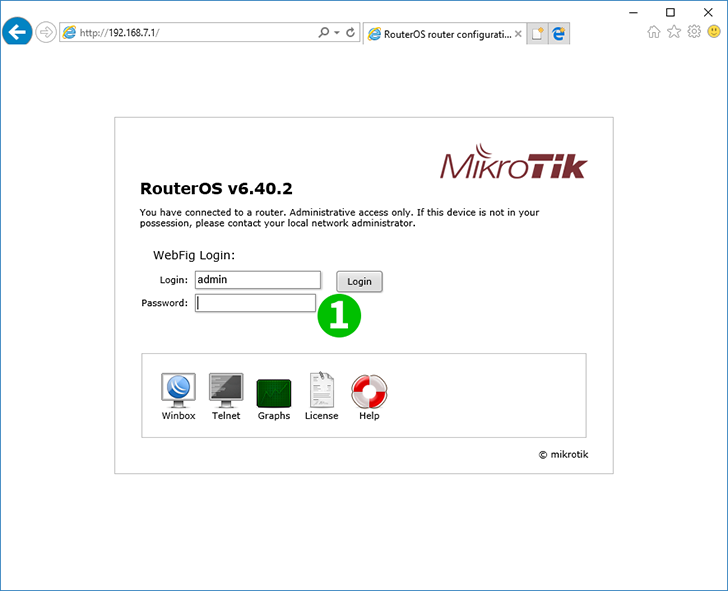
1 Log into the Mikrotik using your username and password (default IP: 192.168.88.1, Login: admin, password: none)
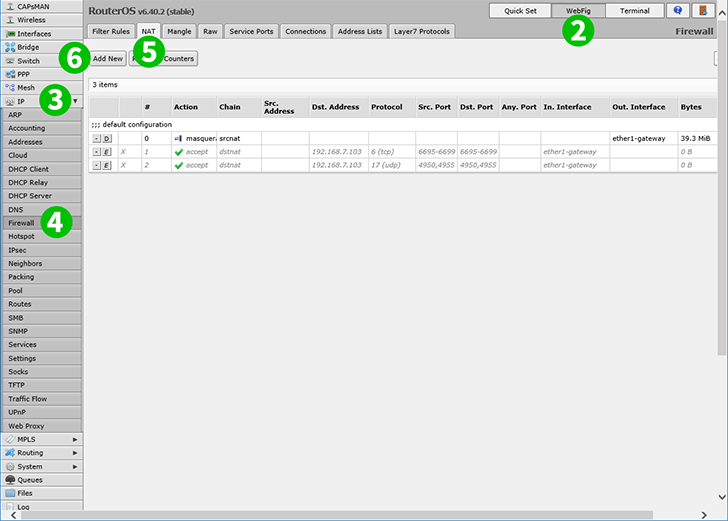
2 Click "WebFig"
3 Click "IP"
4 Click "Firewall"
5 Click "NAT"
6 Click the "Add New" button to add a new rule
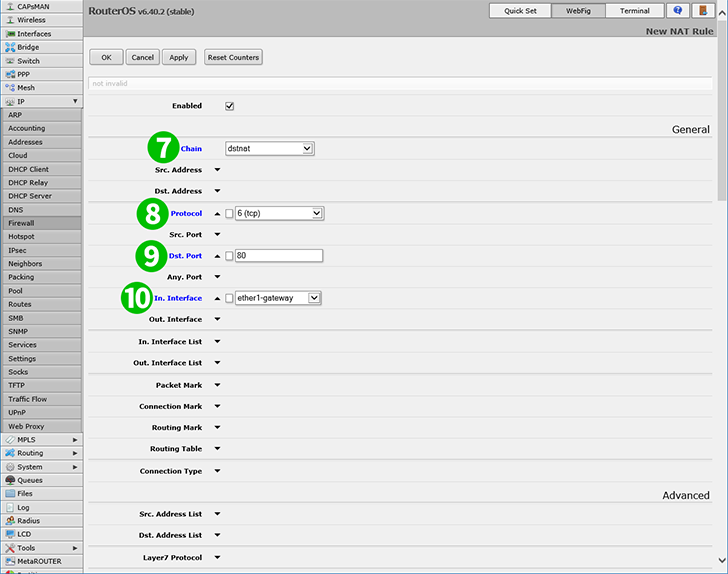
7 Chain: dstnat
8 Protocol: tcp
9 Dst. Port: 80
10 In. Interface: ether1-gateway
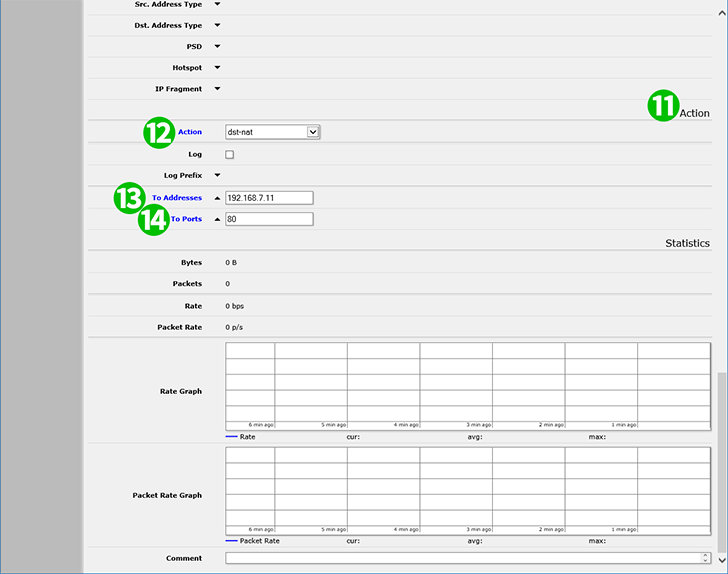
11 Scroll down the page to "Action" field
12 Action : dst-nat
13 To Addresses: 192.168.88.100 (IP of the computer running cFos Personal Net)
14 To Ports: 80
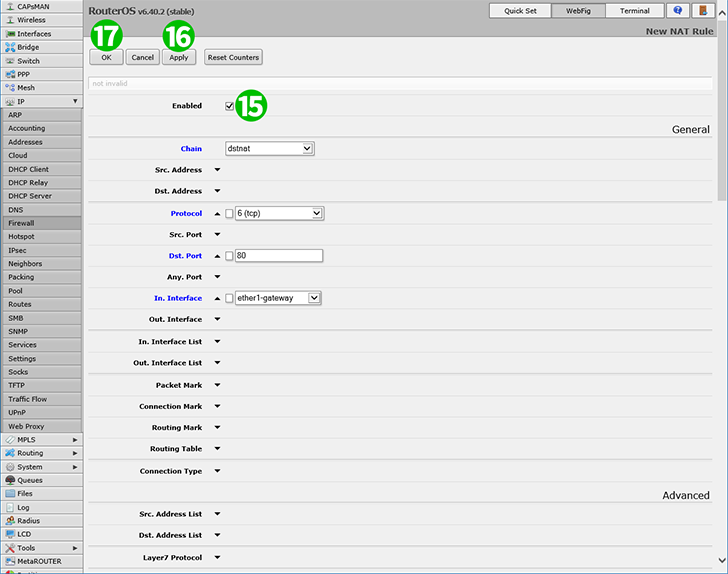
15 Scroll back to the top of the page and check that the rule is enabled (enable it if not)
16 Click "Apply"
17 Click "OK" and then log off from the router
Port forwarding is now configured for your computer!